Email and storage exports in Canvas
Send gallery results by email or upload original and edited screenshots to your Amazon S3 or Cloudflare R2 bucket.
Connect Gallery → Email delivery or Gallery → S3 / R2 upload to export the images produced by a Canvas workflow. You can connect both blocks to the same gallery. They work with manual, scheduled, and webhook-triggered runs, including galleries containing edited images.
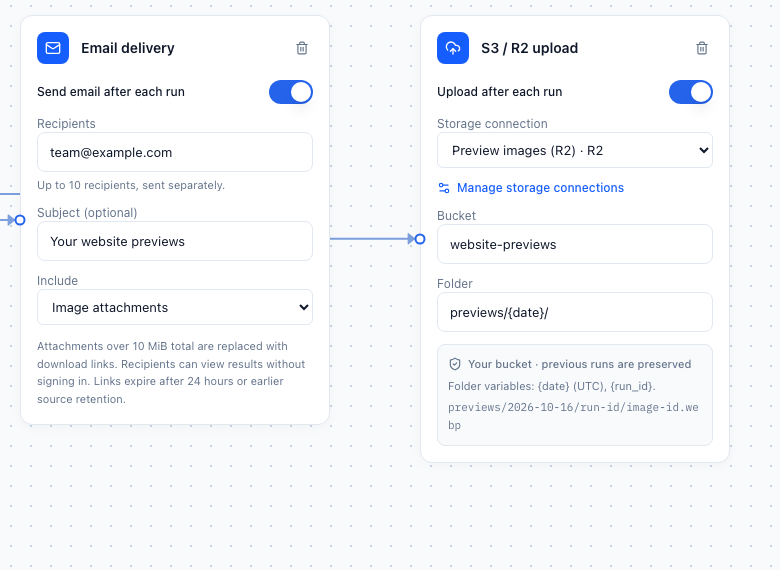
Each export waits for its gallery to finish. It uses that gallery's results, so a watermark, resize, or other edit before the gallery is included in the delivered files.
Blocks saved when these integrations were placeholders stay disabled. Open each block and explicitly enable delivery before saving the pipeline. Existing scheduled pipelines will not start sending email or uploading files automatically after an upgrade.
Email a gallery
- Add Email delivery, and connect its Images input to a Gallery.
- Enable Send email after each run.
- Enter up to ten recipient addresses, separated by commas, semicolons, or whitespace. Each recipient receives a separate email.
- Optionally enter a subject. The default subject includes the pipeline name.
- Choose Preview and download links or Image attachments, then save the pipeline.
Emails use the standard Allscreenshots sender and layout. Email delivery is available on Starter and above, matching scheduled screenshot email delivery.
Links and attachments
Link emails include a result summary, up to twenty previews, and a link to the complete read-only gallery. Recipients can open and download images without an Allscreenshots account. Large galleries are paginated.
Attachment mode includes successful images when their combined file size is at most 10 MiB. If the images exceed that limit, the email includes download links instead and explains the fallback. The same notice appears in Canvas.
Links expire after 24 hours or earlier source retention. Deleting or expiring a source capture or edited image immediately removes access to that image through its link. Downloaded files and attachments are independent copies and cannot be revoked.
Failed or unavailable gallery images are reported in the summary. They are not replaced with original screenshots when an image edit fails.
Upload to Amazon S3 or Cloudflare R2
Create a reusable storage connection
An organization owner or admin can add connections. Other members can select existing connections without reading their credentials.
- Add S3 / R2 upload and choose Manage storage connections.
- Click New connection and enter a descriptive name.
- Choose Amazon S3 or Cloudflare R2.
- For S3, enter the bucket's AWS region. For R2, enter the Cloudflare account ID and choose the bucket jurisdiction, normally Default (global).
- Enter the Access key ID and Secret access key, then save.
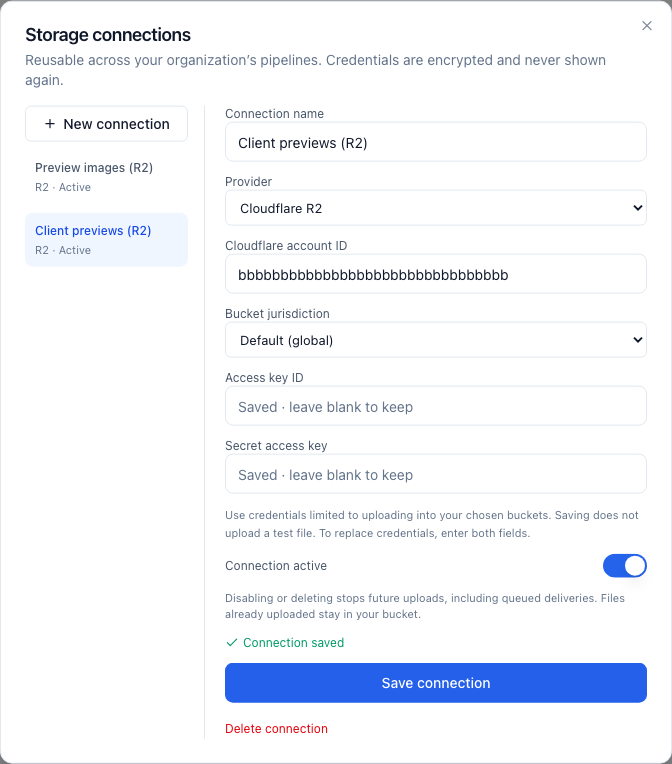
Credentials are encrypted at rest and never returned by the API or embedded in pipeline graphs. Leave both credential fields blank when editing to retain the saved credentials; enter both to replace them. Saving a connection does not upload a test object.
Connections support commercial AWS regions and official R2 endpoints, including jurisdictional R2 buckets. Custom S3-compatible endpoints, IAM role assumption, and temporary session credentials are not supported in this version.
Configure the uploader block
Select the connection, enter the existing bucket name, and choose a folder prefix. Enable Upload after each run, then save the pipeline.
Folder variables are:
| Variable | Value |
|---|---|
{date} | Run acceptance date in UTC, YYYY-MM-DD |
{run_id} | The immutable run identifier |
For example, a folder of previews/{date}/ produces keys such as:
previews/2026-10-16/RUN_ID/IMAGE_ID.webpThe run ID is added automatically unless the folder already uses {run_id}. Extensions reflect each image's actual format. Separate runs preserve earlier exports; retries use the same object key. Versioned buckets may retain additional object versions when a request is retried.
Allscreenshots sends each file with its image content type and does not set a public ACL. Your bucket policy controls visibility. Files uploaded to your bucket remain there independently of Allscreenshots capture retention or pipeline deletion.
Bucket permissions
For S3, limit the connection's IAM credentials to s3:PutObject on the export prefix. For a bucket named website-previews and folder previews/, a basic policy is:
{
  "Version": "2012-10-17",
  "Statement": [{
    "Effect": "Allow",
    "Action": "s3:PutObject",
    "Resource": "arn:aws:s3:::website-previews/previews/*"
  }]
}
Additional permissions may be required by your bucket's encryption or organization policies. Allscreenshots does not need to list buckets, read objects, or delete uploaded objects. See the AWS PutObject permissions reference.
For R2, create an Object Read & Write API token scoped to the destination bucket and copy its S3 Access Key ID and Secret Access Key, rather than using a general Cloudflare API token. Choose the matching jurisdiction for jurisdictional buckets. See Cloudflare's R2 authentication guide.
Disable, rotate, or delete a connection
Manage connections from any uploader block. Disabling or deleting a connection prevents pending uploads from starting, including exports belonging to accepted runs. It does not remove objects already uploaded or undo a request already in flight.
Replacing credentials or changing connection settings affects newly accepted runs. Existing accepted runs retain their original destination settings, provided the connection remains active. To stop an existing run from using old credentials, disable the connection rather than only rotating it.
Inspect delivery results
While an export is working, its connector animates and the block shows progress. A completed block turns green; failed or partially successful deliveries show a warning.
Open Runs → Delivery details to inspect each recipient or uploaded object, including errors and the destination object key. For email, Accepted means the email provider accepted the message; it does not guarantee inbox delivery.
Transient connection errors, throttling, and provider server errors are retried up to five attempts. Confirmed recipients and completed upload tasks are not intentionally repeated. Email retries use a stable idempotency key and identical message; ambiguous sends are not retried beyond the provider's safe retry window.
A failed export makes an otherwise successful pipeline run partial, with successful gallery images preserved. Partial galleries still export their successful images and report failures. Fix configuration errors such as an incorrect bucket, region, or permissions before running again.
Example: branded previews delivered two ways
URL list + Desktop and Mobile views
                 ↓
Capture screenshots → Resize → Watermark → Gallery → Email delivery
                                             └────→ S3 / R2 upload
Use a watermark such as © {hostname} · {date}, select attachment mode for email, and set the storage folder to previews/{date}/. Each run captures the websites in both views, applies the edits, saves the gallery, and exports the results to both destinations.
For service-to-service JSON notifications, use Webhook output instead of email, or add it as another branch from the same gallery.