Edit images in Canvas
Resize, watermark, crop, rotate, adjust colors, and convert screenshots as part of a saved Canvas workflow.
Add image editing steps after screenshot capture to produce ready-to-use previews. Start with the Canvas workflow guide if you have not built a pipeline yet.
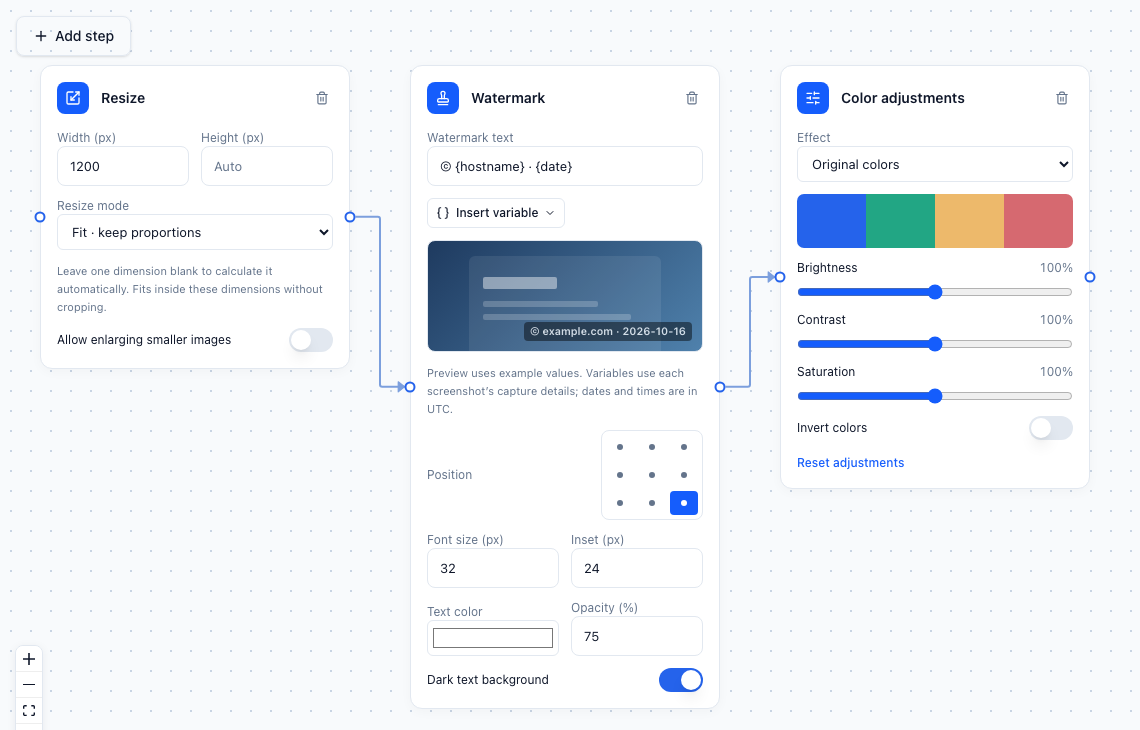
Example editing settings. The watermark placement preview uses example values, not a captured website.
Add an editing chain
Choose a step under Add step → Image editing, then connect its Images input to a Screenshot, Gallery, or another image editing step. Each edit takes one image input; a gallery can merge several branches.
For branded previews, use:
URL list + Capture views
          ↓
Capture screenshots → Resize → Watermark → Image format → Gallery
Set Resize to a width of 1200 px, leave height blank, and choose Fit. Add your watermark, then select WebP in Image format for the final download. Connect a webhook output to the gallery if your application needs the results automatically.
Available steps
| Step | Options and behavior |
|---|---|
| Resize | Fit keeps proportions inside the requested bounds; leave one dimension blank to calculate it automatically. Fill crops from the center to fill both dimensions. Stretch changes proportions to match both dimensions. Enlarging smaller images is off by default. |
| Watermark | Text, nine placement positions, font size, text color, opacity, inset, and optional dark background. Supports the variables below. |
| Color adjustments | Brightness, contrast, saturation, grayscale, sepia, and inversion. Reset adjustments restores the default settings. |
| Crop | Left, top, width, and height in incoming-image pixels. Coordinates start at the top-left. The entire crop must fit inside the image. |
| Rotate & flip | Rotate in 90° increments and mirror horizontally or vertically. |
| Image format | PNG, JPEG, or WebP. JPEG and WebP support quality settings; JPEG also has a background color for transparent pixels. Place this last to choose the final file format. |
Order matters. Crop coordinates refer to the image at that point in the chain, so resizing first changes the pixel coordinates used by Crop. Rotate before Resize if your size constraint should apply to the rotated result.
Watermark variables
Click Insert variable in Watermark, or type a supported token into the text. Variables are resolved separately for each screenshot.
© {hostname} · {date} · {resolution}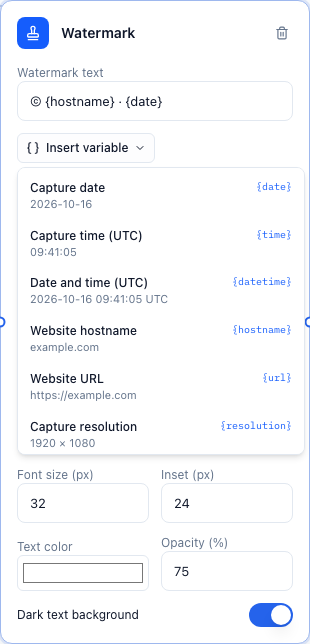
| Variable | Value |
|---|---|
{date} | Original capture date, YYYY-MM-DD, in UTC |
{time} | Original capture time, HH:mm:ss, in UTC |
{datetime} | Original capture date and time with a UTC label |
{url} | Captured website URL |
{hostname} | Website hostname, such as www.example.com |
{resolution} | Original capture's actual pixel dimensions, including full-page height |
{width}, {height} | Original capture width or height in pixels |
{image_resolution} | Dimensions entering this step, after preceding edits |
For example, a 1920 × 1080 capture resized to 1200 × 675 still uses the original dimensions for {resolution}. Use {image_resolution} to label the resized image instead. Capture dates remain tied to the original capture, including on retries.
The editor preview uses labeled example values. Templates support these tokens only, with no expressions or scripts; unknown names produce a validation error. Watermark templates can contain up to 200 characters.
Keep originals and edited versions
Image edits create separate files and do not submit or charge for another screenshot capture. The original remains in your screenshots library. Intermediate edits use PNG; use Image format after the last edit when you want JPEG or WebP.
Branch the Screenshot output into one gallery for originals and into an editing chain ending in another gallery for processed images. You can also merge both branches into one gallery. Result labels distinguish originals from edits, and the details dialog opens and downloads the selected version.
Deleting an edited image preserves its original and other edits. Deleting or expiring the source capture also makes its edited images unavailable.
Limits and troubleshooting
Processing accepts PNG, JPEG, and WebP images up to 64 MiB, 60 megapixels, and 32,768 pixels per side. WebP output has a lower limit of 40 megapixels and 16,383 pixels per side. A run supports up to 50,000 image edits, alongside the usual screenshot limits.
Very tall full-page captures can exceed processing or WebP output limits. Use Resize to reduce dimensions before later edits or format conversion when the incoming image is within the processing limits. An image exceeding the input limit cannot be resized by the pipeline.
If an edit fails, inspect its warning icon and the run details. A crop outside the image fails explicitly; failed edits are not silently replaced with originals. Successful gallery results remain available when a run finishes partially.
Build screenshot workflows with Canvas
Capture websites in multiple views, edit the images, and save a reusable pipeline you can run manually, on a schedule, or through a webhook.
Canvas webhooks
Trigger screenshot pipelines with a URL list and receive signed gallery notifications with image download links.