Build screenshot workflows with Canvas
Capture websites in multiple views, edit the images, and save a reusable pipeline you can run manually, on a schedule, or through a webhook.
Canvas connects screenshot capture, image editing, galleries, and webhook delivery in one visual workflow. Save a pipeline once, then run it with a button, on a schedule, or with URLs supplied by your application.
Open Canvas in the dashboard to get started. You need an Allscreenshots account and an active API key with enough screenshot quota for the run.
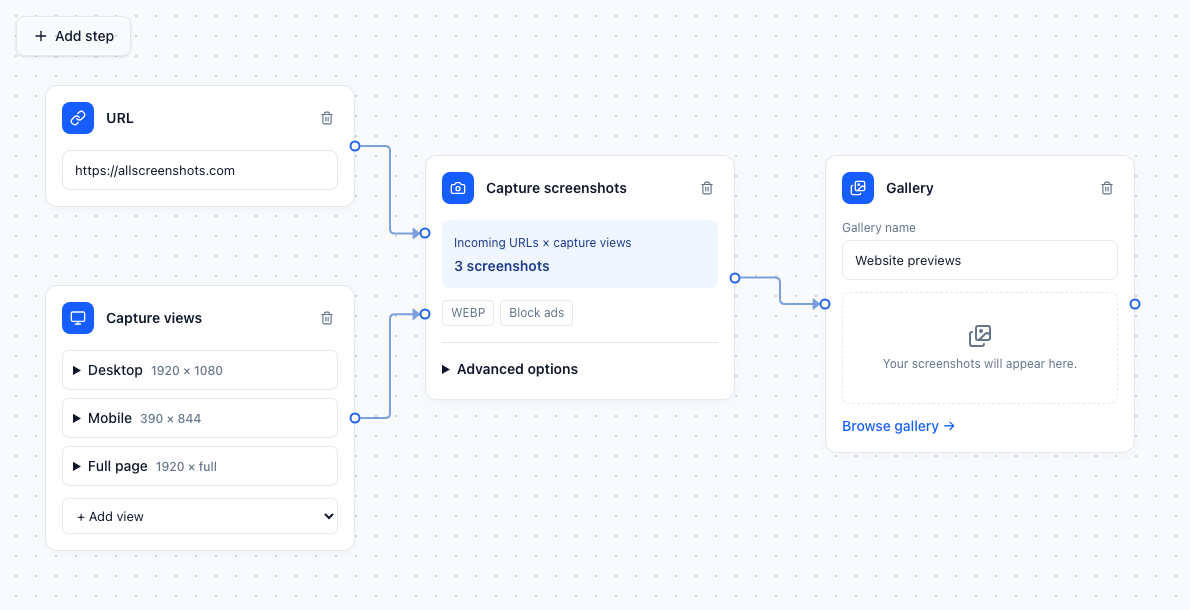
Example configuration in the Canvas editor. Images appear in the gallery after a run.
Build your first pipeline
- Create a pipeline and give it a descriptive name, such as Website previews.
- Use Add step → URL for one website, or URL list to paste several websites.
- Add Capture views. Choose a desktop or mobile preset, configure custom dimensions, or enable full-page capture for a view.
- Add Screenshot, shown on the canvas as Capture screenshots. Connect the URL source to its URLs connector, and Capture views to its views connector.
- Add Gallery and connect the screenshot step's image output to it. Give the gallery a name.
- Open Advanced options on the screenshot step for capture settings such as timing, blocking, styling, and output format.
- Click Save, then Run pipeline. Open Runs to inspect progress and results.
Every incoming URL is captured in every connected view. Two URLs and three views produce six screenshots per run. The header shows the estimated capture count before execution; normal capture quotas and feature availability apply.
Example: desktop, mobile, and full-page previews
Use https://allscreenshots.com as your URL and add these three views:
| View | Settings | Result |
|---|---|---|
| Desktop | 1920 × 1080, full page off | The first desktop viewport |
| Mobile | 390 × 844, full page off | A narrow mobile viewport |
| Full page | Desktop width, full page on | The complete scrollable page |
Connect both the URL and Capture views blocks to Capture screenshots, then connect its image output to Gallery. One click now creates three previews. To apply a watermark or resize them before saving, insert an image editing step.
Connect, rearrange, and remove steps
Drag from a block's output connector to a compatible input connector. You can move blocks around without changing what the pipeline does.
To insert a step into an existing connection, select the line and drag its destination endpoint onto the new block. Then connect that block to the original destination. For example:
Before: Capture screenshots → Gallery
After:  Capture screenshots → Watermark → Gallery
Drag either endpoint to reconnect it. Select a line and choose Remove connection, or press Delete/Backspace, to disconnect blocks without deleting them. Dropping onto empty space or an incompatible connector leaves the existing connection intact. Cycles and incompatible connections are rejected.
Click outside Add step to close the picker. Use the canvas controls to zoom or fit the workflow into view.
Review images and failures
The connectors show execution progress: an animated line indicates active work, green indicates completed work, and warning states identify problems. Downstream steps wait for their actual inputs; a webhook output starts delivery after its gallery finishes.
Click a gallery thumbnail to open Screenshot details, where you can preview, open, download, report an issue with, or delete the selected result. Open Runs for the run's capture counts, step statuses, and errors. Hover over or click a step's warning icon for its failure details.
A partial run can contain successful images alongside failures. Successful images remain available even if another capture, edit, or webhook delivery fails. Inspect the failing step before running the pipeline again.
Run on a schedule
Click Schedule, enable Scheduled runs, choose a repeat preset or enter a five-field cron expression, select a timezone, and check the Next run preview before saving.
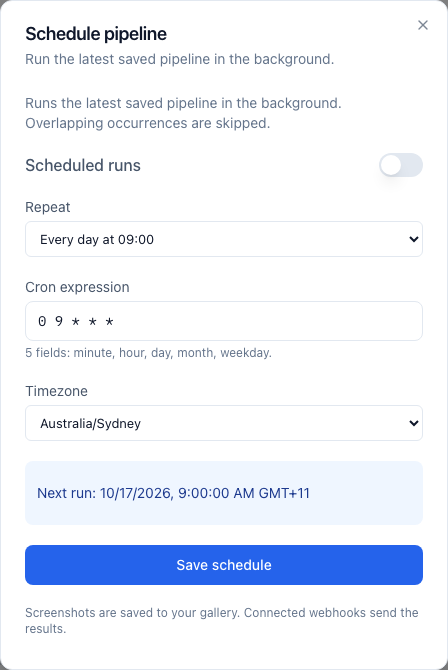
For example, 0 9 * * 1 runs every Monday at 09:00 in the selected timezone. A daily archive could capture a URL list in full-page view each morning, apply a date watermark, and save it to a gallery.
Scheduled execution uses the latest saved pipeline. An active run keeps its own snapshot, so editing the pipeline does not change work already accepted. Overlapping scheduled occurrences are skipped.
Pipelines with an incoming Webhook trigger use webhook requests instead of schedules. Pause an existing schedule before converting it to a webhook pipeline. An output webhook can be used with manual or scheduled pipelines.
Deliver results to your application
Connect Gallery → Webhook output to receive image metadata and temporary download links at your server. Add Webhook trigger to supply one or more URLs from your application. Follow the Canvas webhooks guide for setup, a curl example, and signature verification.
Connect a Gallery to Email delivery or S3 / R2 upload to send results directly. See Canvas exports for email attachment limits, storage credentials, and setup. Email delivery requires Starter or above. Existing placeholder blocks remain disabled until explicitly enabled.
For direct delivery, follow the email and storage exports guide.
More examples
- Branded thumbnails: URL list + Desktop view → Screenshot → Resize → Watermark → Gallery.
- Visual archive: URL list + Full-page view → Screenshot → Watermark with
{date}and{url}→ Gallery; run daily. - On-demand previews: Webhook trigger + Desktop and Mobile views → Screenshot → Image format → Gallery → Webhook output.
- Originals and edited copies: branch Screenshot directly into an Originals gallery and through Color adjustments into a second gallery.
See image editing and watermark variables and incoming and outgoing webhooks for complete examples.