Audit a site visually before a redesign
Crawl a site with screenshots of every page, export one ZIP, and find broken links, duplicate titles and layout problems before a redesign or migration
Audit a site visually before a redesign
Before a redesign or a move to a new CMS, you want a record of every page as it looks today and a list of what's already broken. A crawl with screenshots gives you both: one full-page screenshot and one JSON page document per page, in a single ZIP.
We ran this audit on this documentation site. It took one request and found two broken links, one pair of pages with the same title, and 54 pages with two <h1> headings.
Crawling needs Starter or a higher plan. Each captured page uses one screenshot credit. Broken pages that return an HTTP error aren't charged.
Crawl with screenshots
curl -X POST 'https://api.allscreenshots.com/v1/crawls' \
  -H 'X-API-Key: YOUR_API_KEY' \
  -H 'Content-Type: application/json' \
  -d '{
    "url": "https://docs.allscreenshots.com/",
    "depth": 3,
    "limit": 100,
    "outputs": ["screenshot", "json"],
    "fullPage": true,
    "viewport": { "width": 1440, "height": 900 }
  }'
fullPage: true(the default) captures each page top to bottom, which is what you want to compare against later.- Keep
sitemapatincludeso pages that nothing links to are part of the audit. - Ads, cookie banners and popups are hidden by default (
blockAds,blockCookieBanners,blockPopups). Set them tofalseif you want to record the site exactly as a visitor sees it. - For the mobile layout, run a second crawl with
"viewport": { "width": 390, "height": 844 }.
Download the ZIP
When the crawl has ended, download every screenshot and page document in one file:
curl 'https://api.allscreenshots.com/v1/crawls/CRAWL_ID/export?format=zip&outputs=screenshot,json' \
  -H 'X-API-Key: YOUR_API_KEY' --output audit.zip
unzip audit.zip -d audit
Our crawl captured 71 pages, and the ZIP was 18 MB. It has one folder per page, numbered in crawl order, and a manifest.json:
audit/
├── manifest.json
├── 001-index/
│   ├── screenshot.webp
│   └── page.json
├── 002-llm-txt/
├── 003-support/
└── ...
Each entry in manifest.json says what happened to the page:
{
  "id": "iguxHeoKT9",
  "url": "https://docs.allscreenshots.com/",
  "title": "Introduction | Allscreenshots Docs",
  "status": "COMPLETED",
  "depth": 0,
  "parentId": null,
  "httpStatus": 200,
  "errorCode": null,
  "folder": "001-index",
  "files": ["001-index/screenshot.webp", "001-index/page.json"],
  "expiredOutputs": null
}
Find broken links
A page that answers with an error has "status": "FAILED" and its httpStatus. parentId points to the page where the crawler found the link, so you know which page to fix:
jq -r '(.pages | map({key: .id, value: .url}) | from_entries) as $byId
  | .pages[] | select(.status == "FAILED")
  | "\(.httpStatus) \(.url)  linked from \($byId[.parentId])"' audit/manifest.json
On our docs:
404 https://docs.allscreenshots.com/dashboard/domains  linked from https://docs.allscreenshots.com/features/social-images
404 https://docs.allscreenshots.com/guides/cicd-integration  linked from https://docs.allscreenshots.com/use-cases/ci-cd-workflows
Both were real mistakes: a dashboard link written as a docs path, and a guide that was renamed. We fixed them.
parentId is the first page that linked to the URL. Other pages may link to it too, so search your content for the URL before you call it fixed.
Check titles and headings
Each page.json has the page's title, description, canonical URL and headings. A few checks with jq:
# Pages without a meta description
jq -r 'select((.description // "") == "") | .url' audit/*/page.json

# Titles used by more than one page
jq -s 'group_by(.title) | map(select(length > 1) | {title: .[0].title, urls: map(.url)})' audit/*/page.json

# Pages with no <h1>, or more than one
jq -r '.url as $u | [.headings[] | select(.level == 1)] | length | select(. != 1) | "\(.) h1  \($u)"' audit/*/page.json
On our docs every page had a description. Two pages shared the title "Visual regression testing | Allscreenshots Docs", the guide and the use case. And 54 of the 71 pages had two <h1> headings, because the page template prints the title and the page content starts with the title again.
Look at every page
Open the screenshots side by side, or build a contact sheet so you can scan the whole site at once. This one shows the first 24 pages of our crawl:
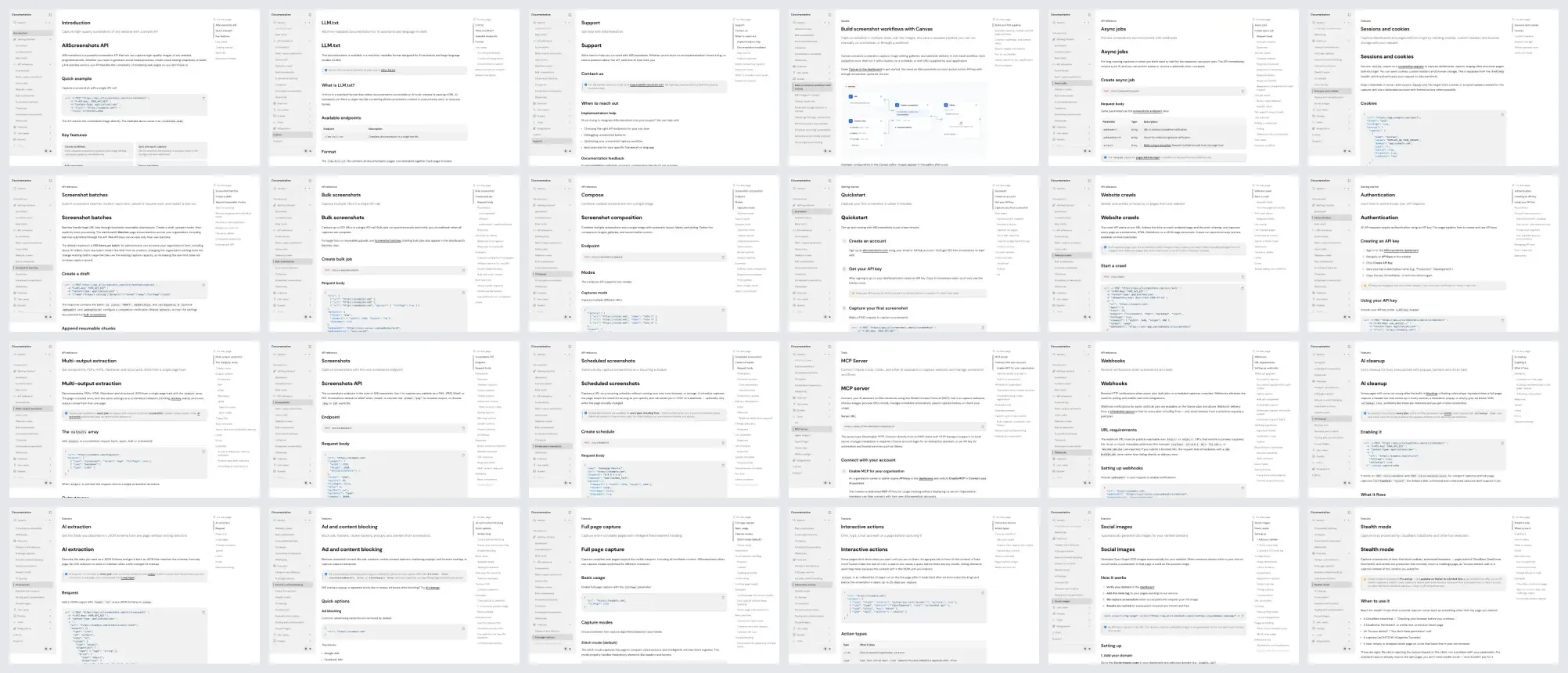
Look for pages that break the pattern: an empty state, a missing image, a layout that falls apart, an old banner. They're easy to spot when every page sits next to the others.
The Crawler view in the dashboard shows the same crawl as a site atlas, with a thumbnail of every page linked to the page that found it.
Compare after the redesign
Run the same crawl against the new site, or its staging copy, and pair pages by URL path. This script lists pages that disappeared, pages that are new, and the screenshots to compare for the rest:
import fs from 'node:fs';

const load = (dir) => {
  const { pages } = JSON.parse(fs.readFileSync(`${dir}/manifest.json`, 'utf8'));
  return new Map(pages.map((p) => [new URL(p.url).pathname, { ...p, dir }]));
};

const before = load('audit');        // the old site
const after = load('audit-new');     // the new site

for (const [path, page] of before) {
  const next = after.get(path);
  if (!next) console.log(`gone     ${path}`);
  else if (next.status !== 'COMPLETED') console.log(`broken   ${path} (${next.errorCode})`);
  else console.log(`compare  ${page.dir}/${page.folder}/screenshot.webp  ${next.dir}/${next.folder}/screenshot.webp`);
}
for (const path of after.keys()) if (!before.has(path)) console.log(`new      ${path}`);
Pages listed as gone need a redirect. For the pairs, compare the screenshots by eye, or with a pixel diff such as visual regression testing.
Keep the record
Crawl outputs are kept for 7 days. Download the ZIP soon after the crawl and store it with the project if you need the "before" pictures for longer.
Next steps
- Website crawler: scope, sitemaps, patterns and exports, with an interactive replay of the crawl used here.
- Crawl API reference: every field, page status and error code.
- Website monitoring: keep watching a few important pages after launch.